The tool is available now at:
This limited-time access gives shippers, importers, exporters, warehouse teams, and freight professionals a faster way to test container loading scenarios before cargo moves. The feature will return to customer-only access later, so users who want to try it should use it while it is available.
A Smarter Way to Plan Container Loads
Container loading is one of the most important steps in freight planning. A shipment may look simple on paper, but once cargo is inside the container, every inch matters.
Poor load planning can lead to wasted space, uneven weight distribution, avoidable repacking, extra containers, loading delays, or last-minute shipment changes.
The Gateway Lines Smart Load Planner helps users visualize how cargo may fit inside a container before the loading process begins. Instead of guessing, users can test cargo dimensions, review space usage, adjust layouts, and understand how a shipment may be arranged in a real container environment.
What Users Can Do Inside the Load Planner
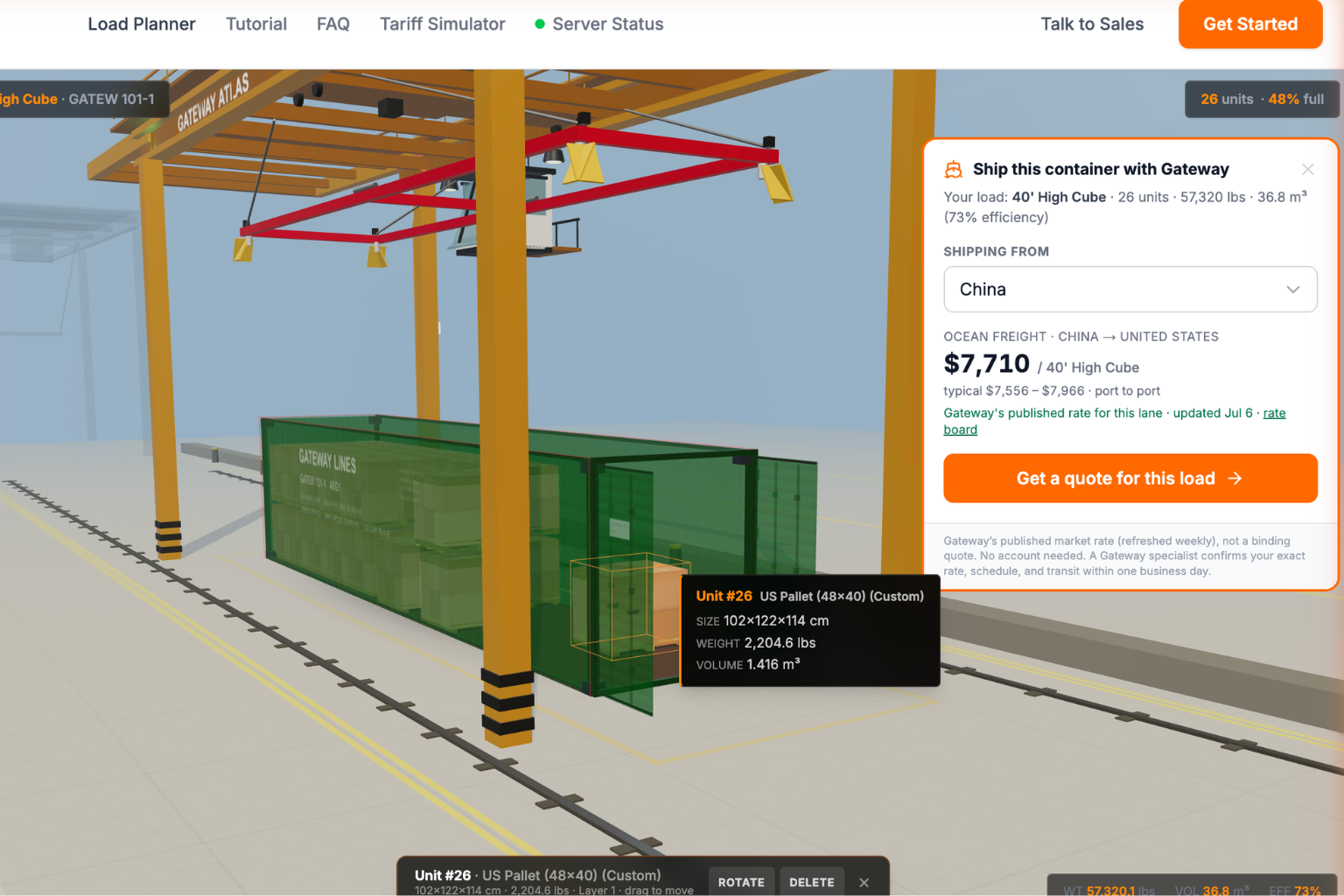
The Smart Load Planner includes a 3D container workspace where users can build and review container loads directly in the browser.
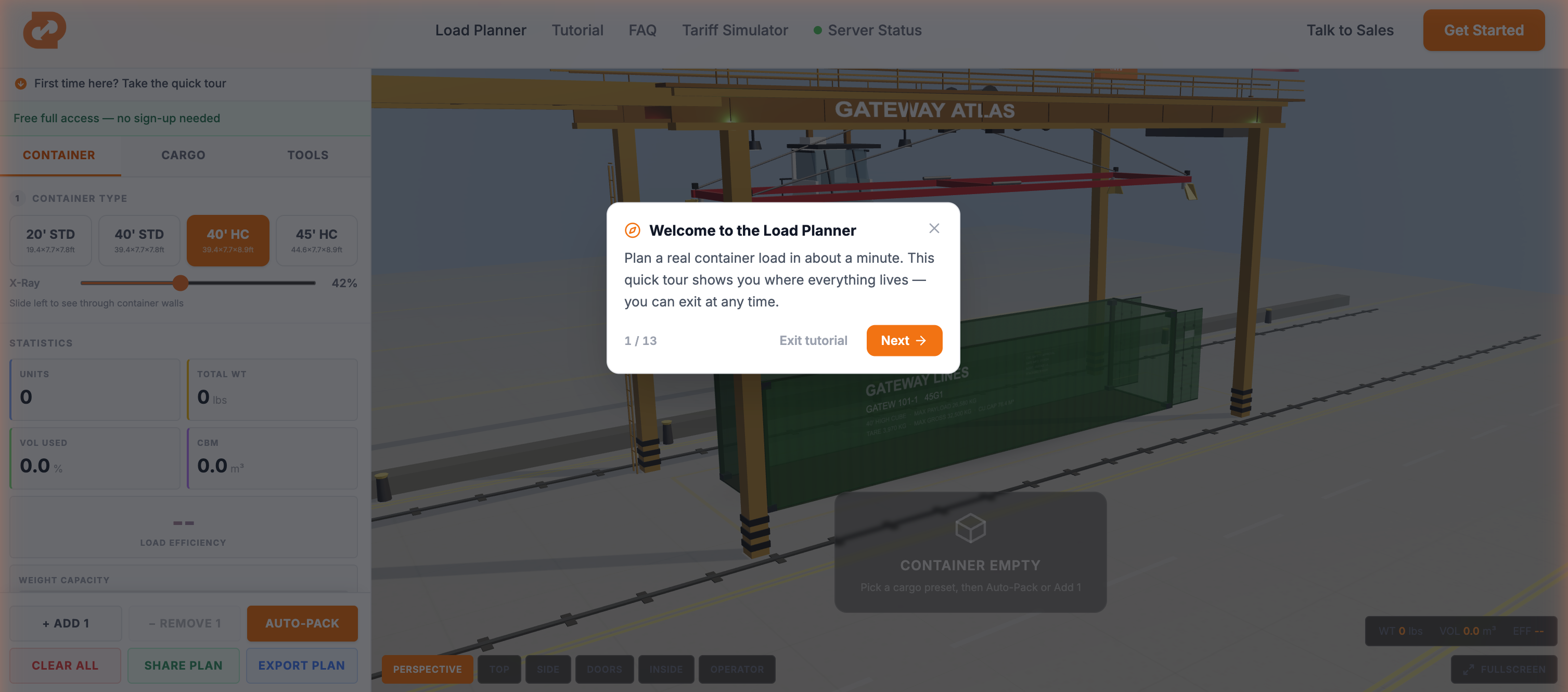
Users can plan with multiple container options, including common standard and high-cube container types. They can add cargo, auto-pack units, rotate or delete selected items, inspect individual cargo dimensions, and review how the load appears from multiple camera views.
The tool also includes practical planning data such as:
Total unit count
Total cargo weight
Cubic meter usage
Load efficiency
Weight capacity
Volume capacity
Weight distribution from rear to doors
Cargo manifest
Container fill percentage
Individual unit dimensions, weight, and volume
This gives users a clearer picture of how their cargo may fit before they move into quoting, booking, or warehouse preparation.
Auto-Pack and Manual Adjustments
One of the key features is Auto-Pack.
Instead of manually placing every unit, users can enter cargo details and use Auto-Pack to quickly arrange items inside the container. This helps speed up the planning process and gives users an immediate starting point for reviewing capacity, efficiency, and cargo placement.
After Auto-Pack creates the layout, users can still manually adjust the load. Cargo units can be clicked, moved, rotated, deleted, or stacked when stackable. This allows users to test different configurations and build a more realistic plan before the container is loaded.
Also update the feature list to include these:
Click and move cargo units inside the 3D container
Rotate or delete selected cargo
Stack cargo when stackable
Manually adjust layouts after Auto-Pack
Test different loading configurations
Review stacked, palletized, boxed, or crated cargo arrangements
This makes the article sound much stronger because it shows the tool is interactive, visual, and operational, not just a calculator.
X-Ray View and Multiple Camera Angles
The Load Planner includes an X-Ray style view that allows users to see through the container walls and inspect how cargo is positioned inside.
This is especially useful when reviewing dense loads, stacked cargo, or larger container layouts where the view may otherwise be blocked from the outside.
Users can also switch between different viewing modes, including perspective, top, side, doors, inside, and operator-style views. These angles help users inspect the container from different positions and better understand how the load is arranged.
Cargo Manifest and Real-Time Load Metrics
As users add cargo, the Load Planner updates the cargo manifest and load metrics in real time.
The interface shows the number of units loaded, total weight, volume used, cubic meters, weight capacity, volume capacity, and overall load efficiency. It also shows how weight is distributed from the rear of the container toward the doors.
That matters because container planning is not only about whether cargo fits. It is also about whether the load makes practical sense from a weight and space perspective.
A container may appear to have room, but if the weight is poorly distributed or capacity is being used inefficiently, the shipment may need to be reworked. The Load Planner helps users identify those issues earlier.
Share and Export Load Plans
The tool also includes options to share and export load plans.
This is useful for teams that need to coordinate between sales, operations, warehouse staff, customers, or freight planning teams. Instead of explaining a container layout manually, users can create a visual plan and share the load details more clearly.
For teams preparing shipments, this can reduce confusion and improve communication before cargo reaches the loading stage.
From Load Plan to Freight Quote
The Load Planner also connects planning with the next step: shipping.
After building a container load, users can request a quote for that load directly from the interface. The quote panel allows users to review the selected container type, unit count, total weight, volume, and load efficiency before requesting pricing.
This helps turn a container plan into a more complete shipment discussion.
Instead of sending rough cargo details separately, users can begin with a clearer picture of the load they are trying to move.
Built for Shippers, Importers, Exporters, and Warehouse Teams
The Gateway Lines Smart Load Planner can be useful for many types of freight users, including:
Importers planning full container shipments
Exporters preparing outbound container loads
Warehouse teams checking pallet or crate configurations
Freight teams estimating container usage
Businesses comparing different cargo layouts
Teams preparing shipment details before requesting a quote
Operators trying to reduce wasted container space
The tool is designed to make container planning more visual, more practical, and easier to understand.
Manual Drag-and-Drop Load Control
The Load Planner is not limited to automatic placement. Users can also click directly on cargo units inside the 3D container and move them around manually.
Boxes, pallets, crates, or other cargo units can be repositioned, adjusted, rotated, or removed as needed. When cargo is stackable, users can also test stacked arrangements to see how the load may work vertically inside the container.
This gives users more control over the final load plan. Auto-Pack can create a fast starting layout, and then users can fine-tune the placement by hand.
For warehouse teams and shipment planners, this is especially useful when cargo must be loaded in a specific order, stacked carefully, kept accessible near the doors, or arranged around weight and space requirements.
Why This Matters
Freight planning often becomes expensive when teams discover problems too late.
If cargo does not fit the way expected, a shipment may require repacking, additional labor, another container, or a revised loading plan. These issues can create delays and increase cost.
A 3D load planner helps users think through those problems earlier.
By checking dimensions, space usage, capacity, and weight distribution before the shipment moves, users can approach the process with better visibility and fewer assumptions.
Free for a Limited Time
Gateway Lines has made the Smart Load Planner available for free public access for a limited time.
No sign-up is needed during this access period.
Users can open the tool, test cargo layouts, explore the 3D container view, use Auto-Pack, review load efficiency, inspect weight distribution, and prepare a more informed shipment plan.
This free-access period is temporary. The feature is expected to return to customer-only access later.
Try the Gateway Lines Smart Load Planner
The Gateway Lines Smart Load Planner is available now at:
https://load.gatewaylines.com/
Use it while free public access is available.